« Return to Conference Room Guides
Instructions:
Touch the touch panel screen to wake it up, allow for a few moments while the system turns on:

Once the system is initialized, select the input you want to use:
To use the Nintendo Switch, select the “Nintendo Switch” option
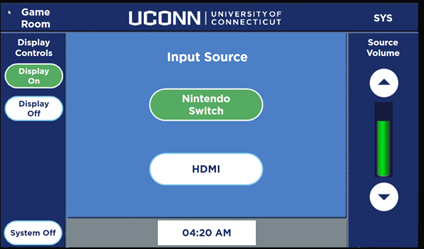

Note: Make sure that the Nintendo Switch is in the docking station; you may have to see game room attendant to get the Switch and put it in the dock. If the Switch is not in the docking station, you may see a portrait screen on the display, the portrait screen displays when there is no signal going to the HDMI port that the Switch is plugged into, once the Switch is in the docking station, it will display on the screen.
To use the HDMI wall plate, connect a HDMI cable to your device, and plug it into the HDMI wall plate that is located below the display:
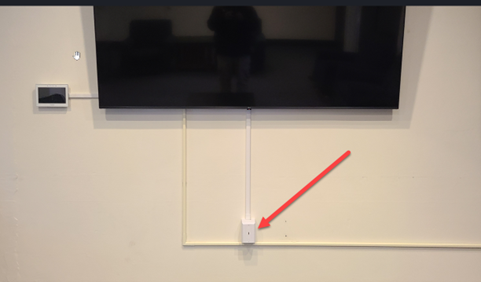
Note: DO NOT REMOVE ANY CABLES or PLUG ANYTHING INTO THE BACK OF THE DISPLAY, if you want to connect a device to the display, ONLY use the HDMI wall plate below the display
select “HDMI” from the home screen:
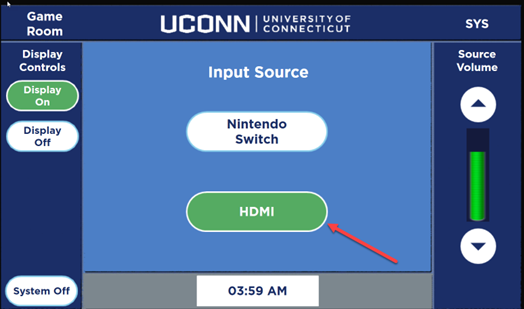
To shut down the system, press the “System Off” button:
